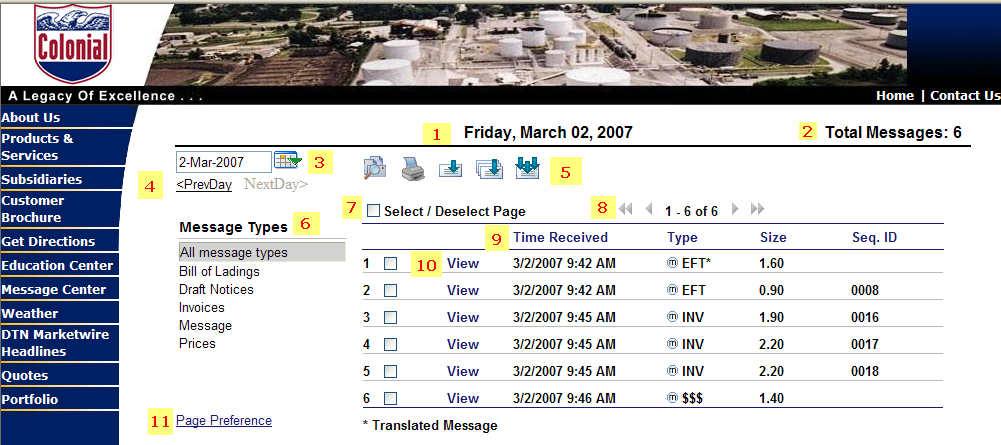
The Message Center lists all the messages sent to you by Colonial on a specified date. You will use this screen to perform tasks that help you make the best use of vital business information, including viewing, sorting, and printing messages.
The Messages Screen has the following features.
The date on which the displayed messages were received from Colonial. By default, the screen displays messages for the current date. You can use the Date Received Filter (#3) to change this date.
The total count of messages for the Date Displayed and the selected Message Type. By default, the screen displays Total Messages for the current date and for your default message type. The quantity will change when you select different message types and dates.
Use to specify a date for viewing messages. When you click the Calendar icon, a pop-up calendar appears. You can use the calendar to select the date you want.
Use to move forward or backward, one day at a time.
The toolbar at the top of the screen helps you perform the following actions:
 Search to find a specific message
 Print Preview displays the formatted message onscreen
so that it can be printed or saved to a file.
Print Preview displays the formatted message onscreen
so that it can be printed or saved to a file.
 Download to 1 file
 Download to individual files
 Download all files
Use to select the message type you want to view. By default, the screen displays your default message type as set through the Preferences screen. You can filter your messages to one of the following: Bills of Lading (BOLs) Draft Notices, Invoices, Message, or Prices.
Use to select or deselect all the messages on the current page for the displayed date and selected message type. Once selected, you can print or download the messages. Only the messages on the current page will be printed or downloaded. To print or download messages on another page, you will need to move to that page and select print or download again. To select or deselect individual messages, click the selection box to the left of the message.
Use to move from page to page of messages. By default, messages are listed in the order received, with the most recent message first.
# to # of # Indicates the numbers of the messages displayed out of the total count of messages.
<< Returns you to the first page in a series of message pages.
< Returns you to the previous page.
> Advances the Message List one page at a time.
>> Lets you jump to the last page of messages.
The Message List is divided into the following columns. When you click on a Column Head, the Messages List is automatically sorted into ascending or descending order for that Column Head.
Time Received -- The date and time the message was received in your mailbox.
Type -- A 3-character code for the type of message received. The small icon located to the immediate left of this column is a hover button. When you place the point of your cursor over this icon, a pop-up message opens with a description of the Message Type Code.
Size -- The size of each message in kilobytes. A kilobyte is roughly equal to 1,000 bytes or characters.
Seq. ID -- The order in which messages were received.
NOTE: Translated messages will not have a Sequence ID.
Click to open an online copy of the actual message or document.
Use to set the number of messages to be displayed on each page and the default Message Type.
 Colonial Online Help
© 2007 DTN
All rights reserved.
Last Revised: 9 March 2007